When you log in to Josys, the first thing you see is the Josys Home screen. This is the starting point for how you can interact with the Josys application to perform your business operations.
In this tutorial, you will learn how to:
- Navigate through various menus
- Track company statistics and To-do list
- Quick links to create User Profiles, Devices, and Apps
- Stay updated with the latest offerings
Josys Home Screen
Josys Home screen has the following main areas:
1. Top Bar: Displays your organization's name.
2. Navigation Menu: Manage your users, devices, and apps, track tasks and SaaS insights, configure security settings, and other custom settings.
3. Notifications: View and act on all important notifications.
4. Widgets: There are three types of widgets as follows:
- Company Statistics: Displays important company statistics such as the count of users, apps, devices, and app expenditures.
- To-do: Manage your tasks using a to-do list.
- Quick Links: Easily access the user profiles, devices, and applications with the quick links.
5. Demo Library: Explore the Josys demo library to gain insights into the Josys application.
6. What's new in Josys !: Stay updated with the latest product updates from this section.
7. App Integrations: Find a list of all supported apps here.
8. Need Help?: Get help for your query, access your profile details, organization key, change language and currency, and sign out from here.
Navigation Menu
Note: The Menu options in the navigation bar are displayed based on the IT Admin access rights. Learn more here.
From the left navigation menu, you can do the following:
- Scorecard: Gain personalized SaaS insights and access the contributing factors affecting your SaaS health score.
- User Profiles: Manage user profiles by adding new users, importing and exporting user profiles, onboarding/offboarding lifecycle, provisioning/deprovisioning apps, assigning/unassigning devices, registering apps, managing ID,s and app usage.
- Apps: Manage SaaS applications integrated or discovered in Josys, create an app access survey, manage the review requests, enhance your apps' security by enabling SSO for these apps and enforcing critical security measures, and manage your apps' license expenditure and gain valuable insights into license usage and optimization opportunities.
- Devices: Add new devices, manage current and past users of the devices, devices' current statuses, and import and export bulk device details.
- Utilities: Track the scheduled, completed, and assigned tasks, configure workflows and important alerts, integrate apps, install a browser extension, and configure an external data source.
-
Settings: Configure settings related to creating custom fields and models for devices, configuring important notifications for receiving alerts, work locations, departments, two-factor authentication, IP whitelisting, single sign-on, user permissions, and managing API credentials and the employee portal.
You can also collapse the navigation menu by clicking.
Notifications
The Notification displays important alerts on which you can act accordingly.
Step 1: For example, if you have received a notification regarding the User Profile, click the > to view the notification details.

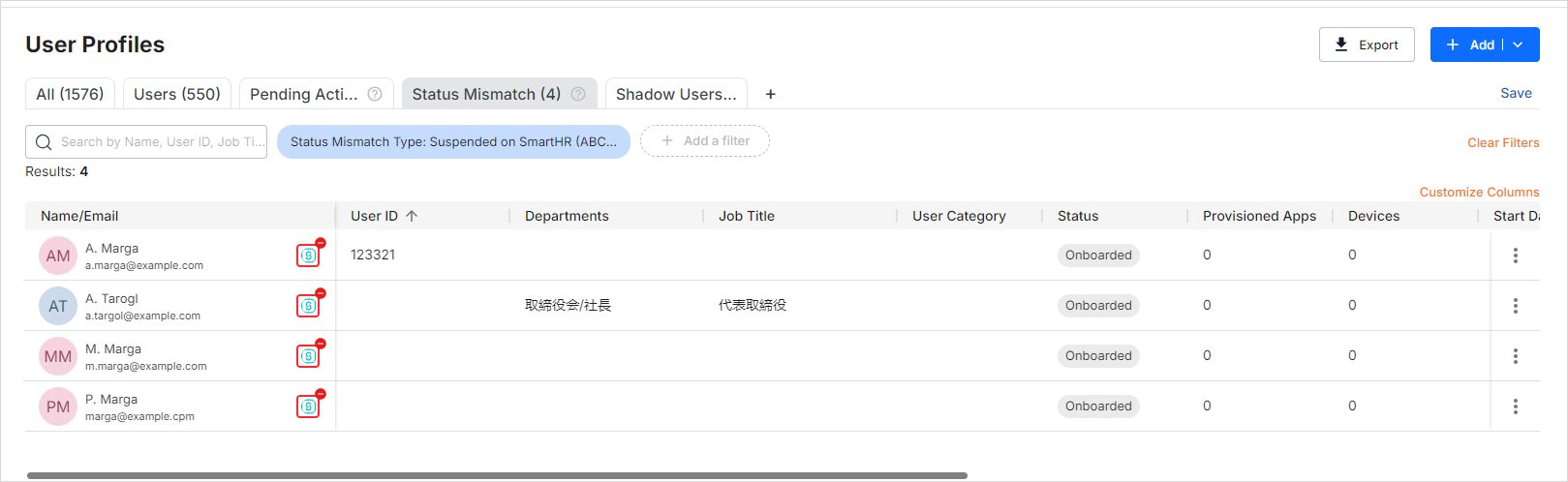
Step 2: The User Profile screen appears, enabling you to take the necessary actions.
To-do
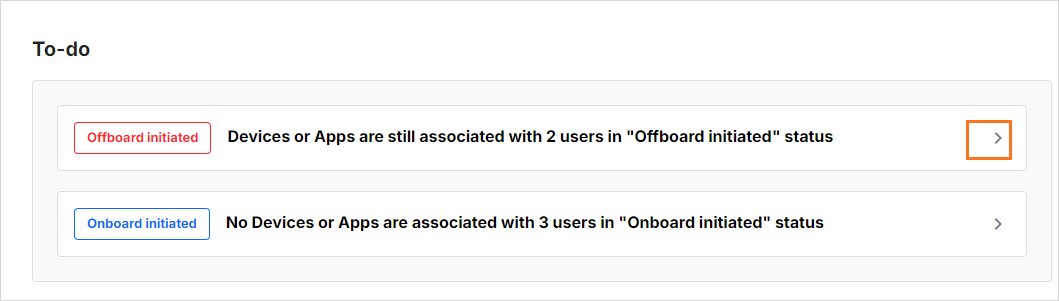
To-do helps the IT Admin to take necessary actions by reviewing the tasks.
Step 1: Go to the related tasks and click > .
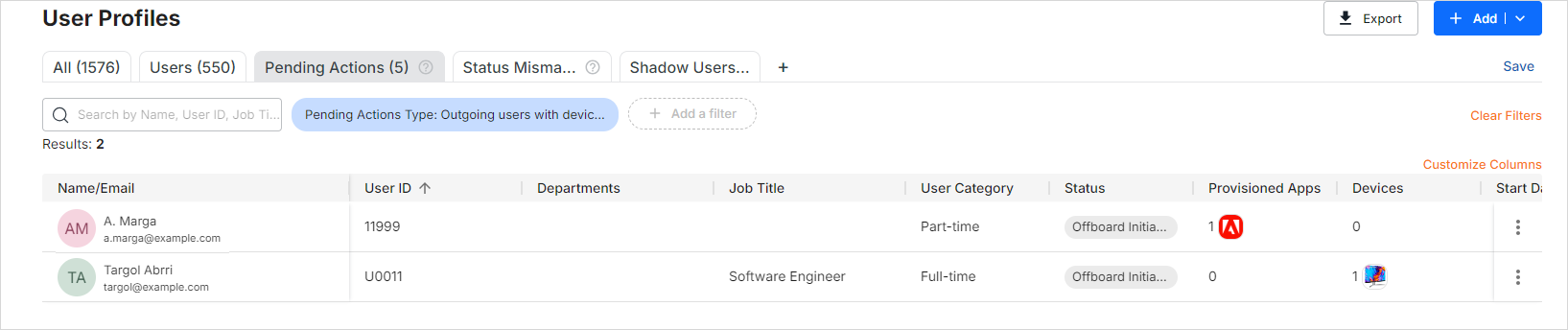
Step 2: The related screen appears, where you can take the required actions.
Quick Links
Click on the respective widget to start working with user profiles, devices, and apps.