To integrate a Google app like Google Workspace with Josys, it is important to perform two important tasks: whitelisting the Josys App and domain-side delegation. This ensures that only the authorized applications are interacting with Google Workspace and can access their Google Workspace data.
Steps to Whitelist Josys App
Step 1: Log in to Google Admin Console.
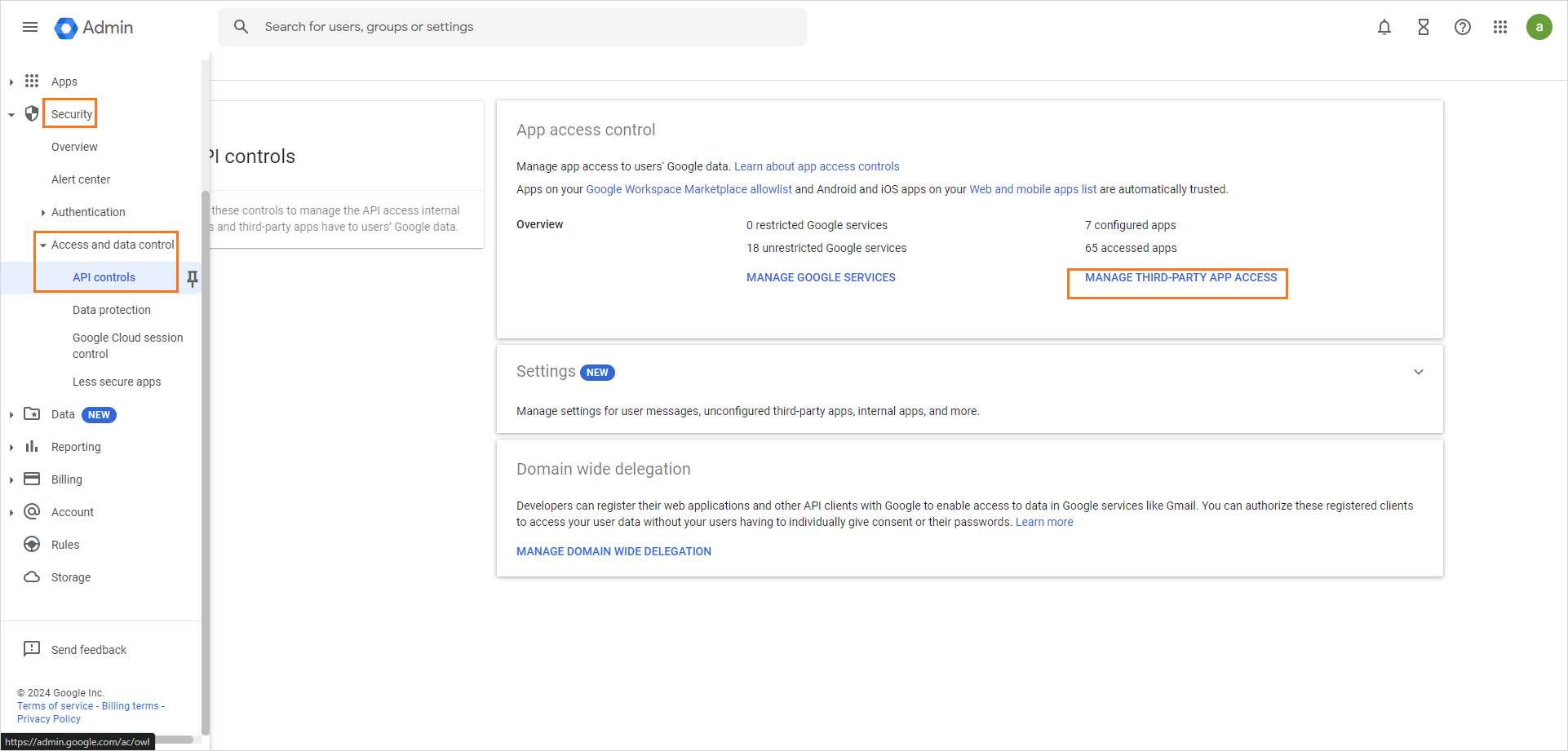
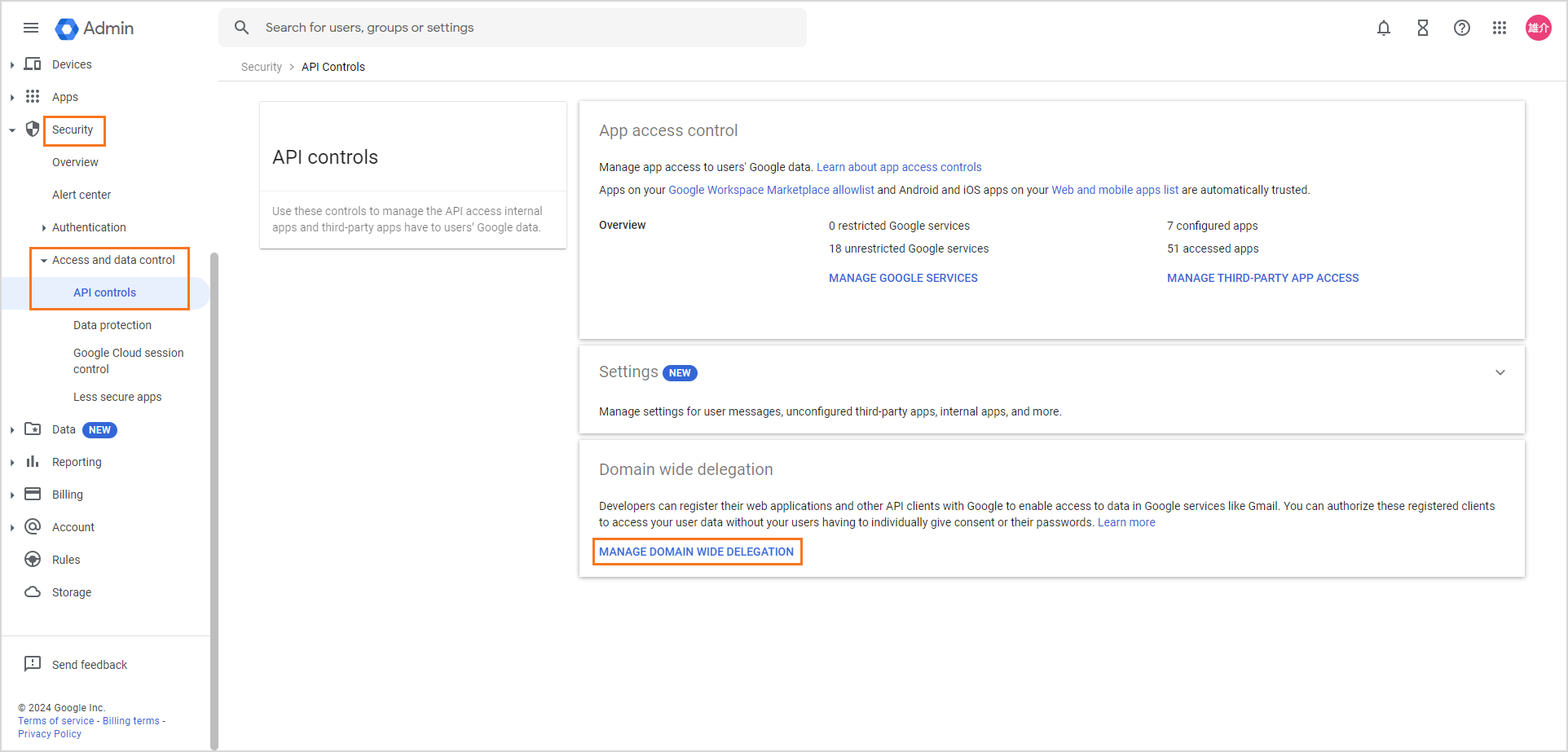
Step 2: Navigate to the Security menu. Select API controls under Access and data control.
Step 3: Click Manage Third-Party App Access.
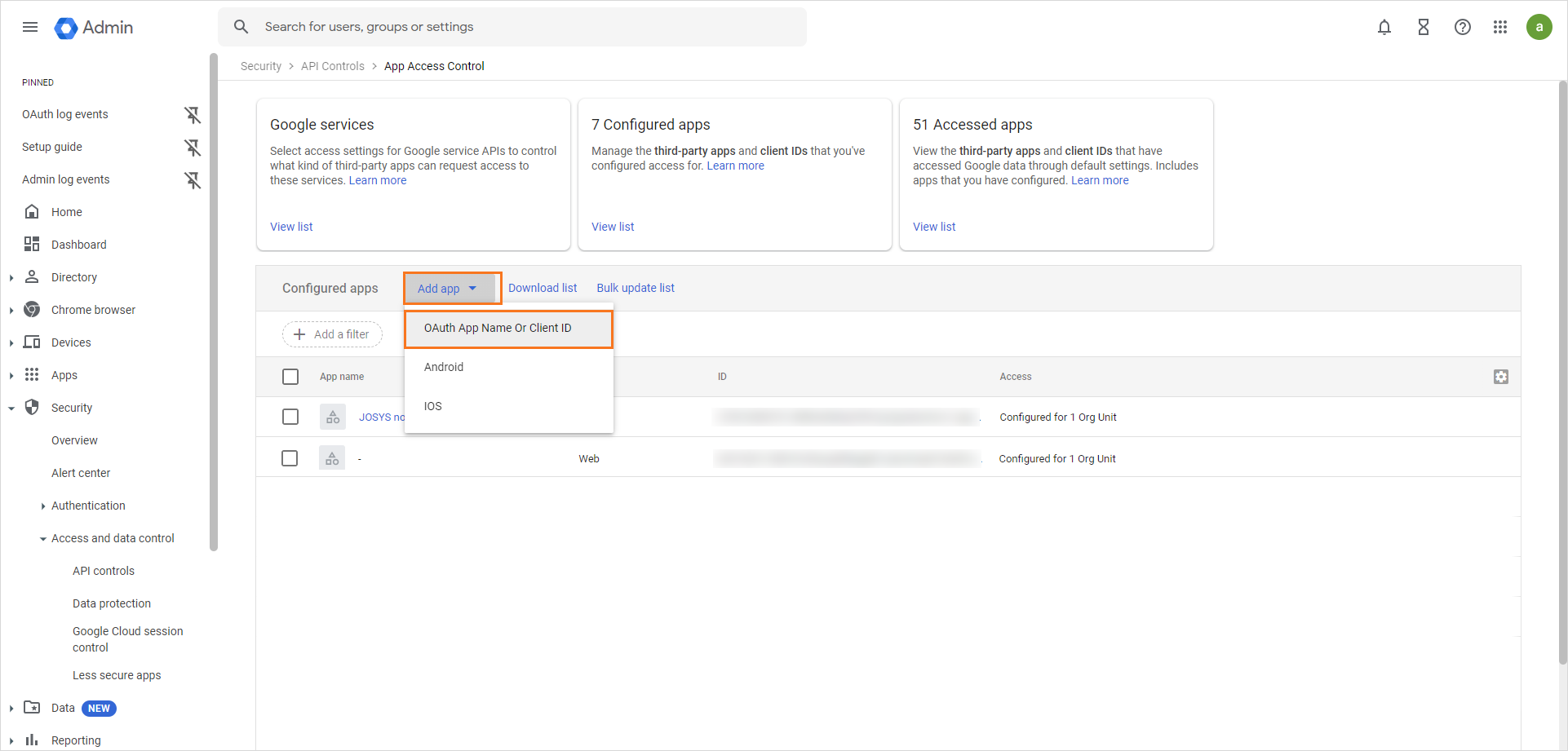
Step 4: Click Add app and select oAuth App Name or Client ID.
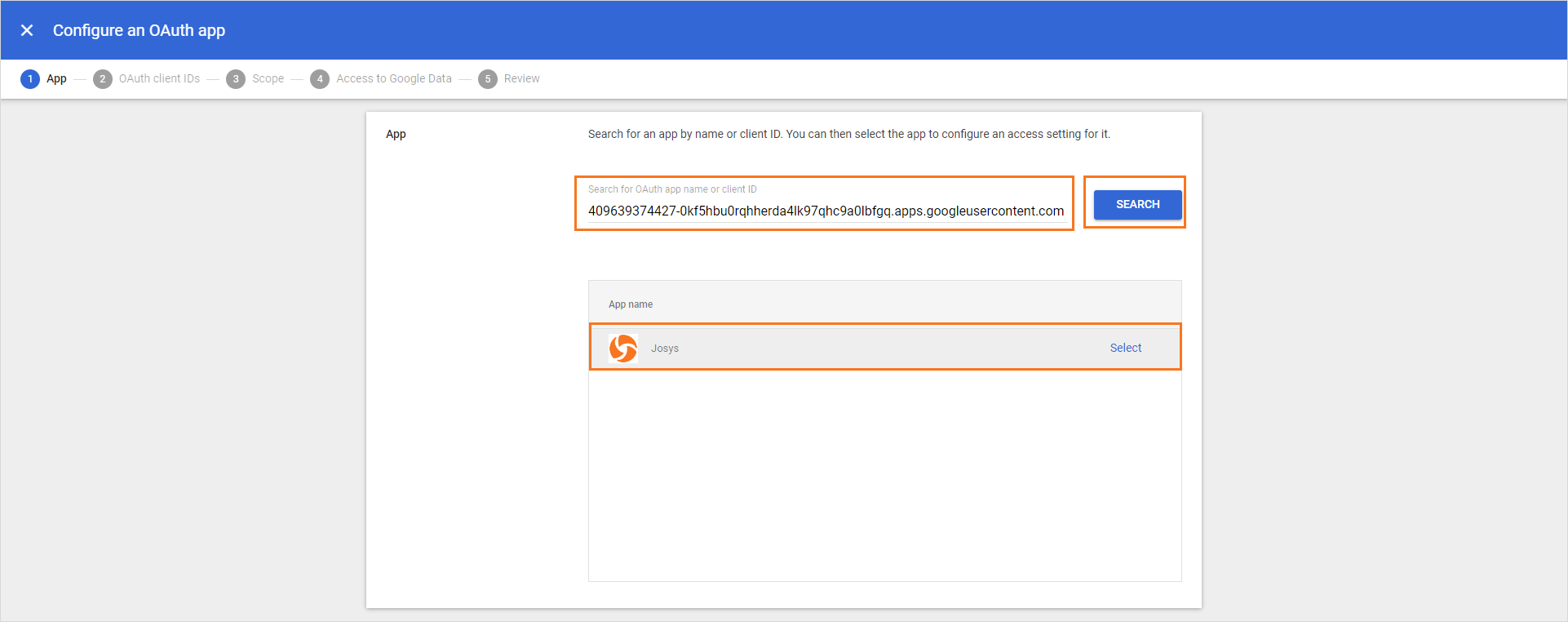
Step 5: In the search bar, enter the following client ID and click Search. Client ID: 409639374427-0kf5hbu0rqhherda4lk97qhc9a0lbfgq.apps.googleusercontent.com
Step 6: The search result will display the corresponding Josys app name. Click Select to choose Josys.
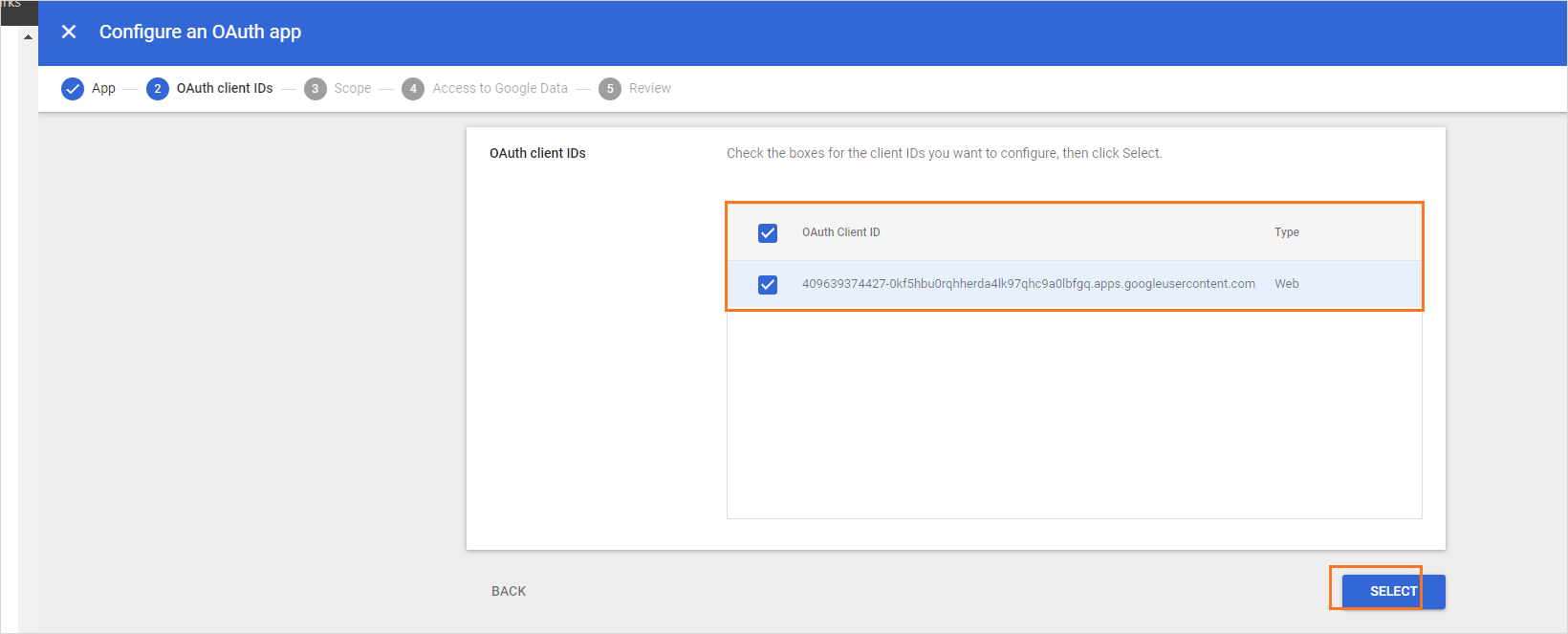
Step 7:Select the oAuth Client ID and click Select.
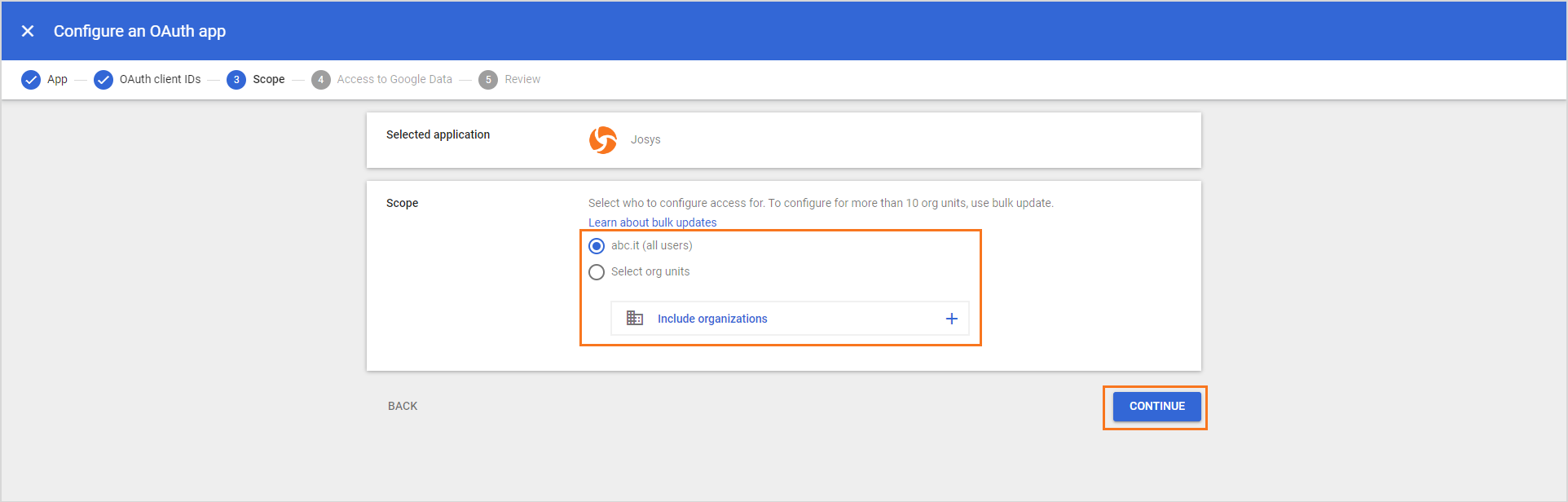
Step 7: Select your organization from the Scope and click Continue.
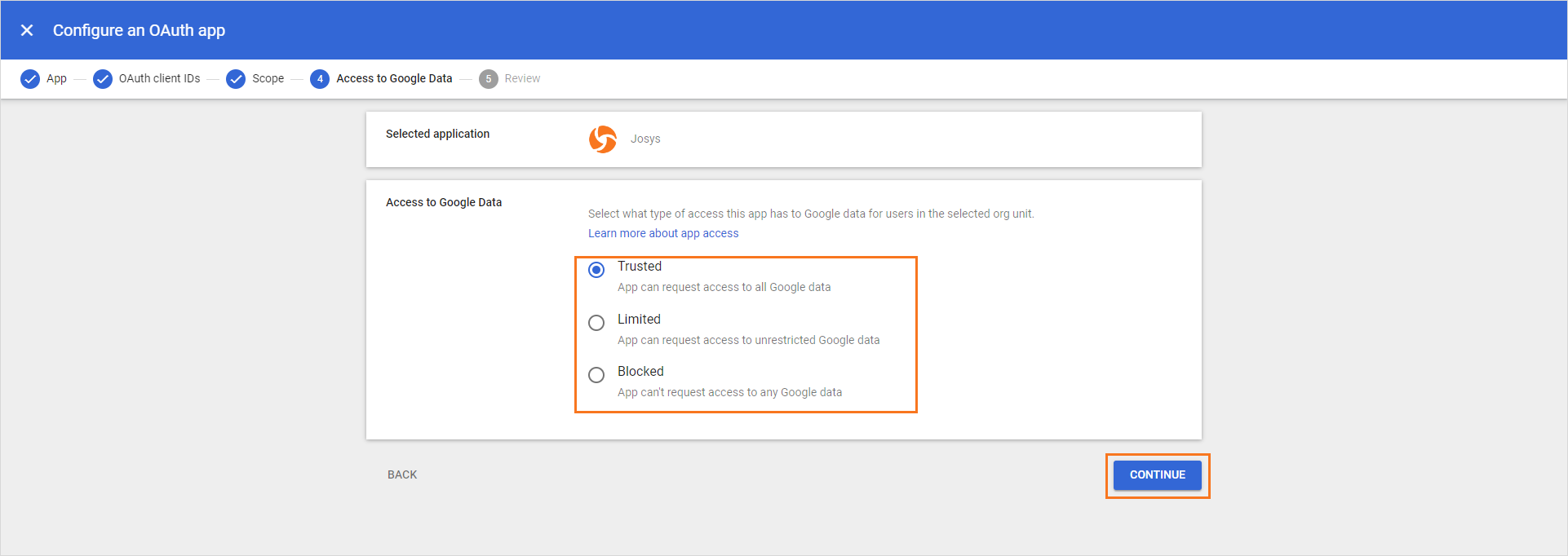
Step 8: Select the type of access to the Google data that you wish to give to the users within your selected organization unit and click Continue.
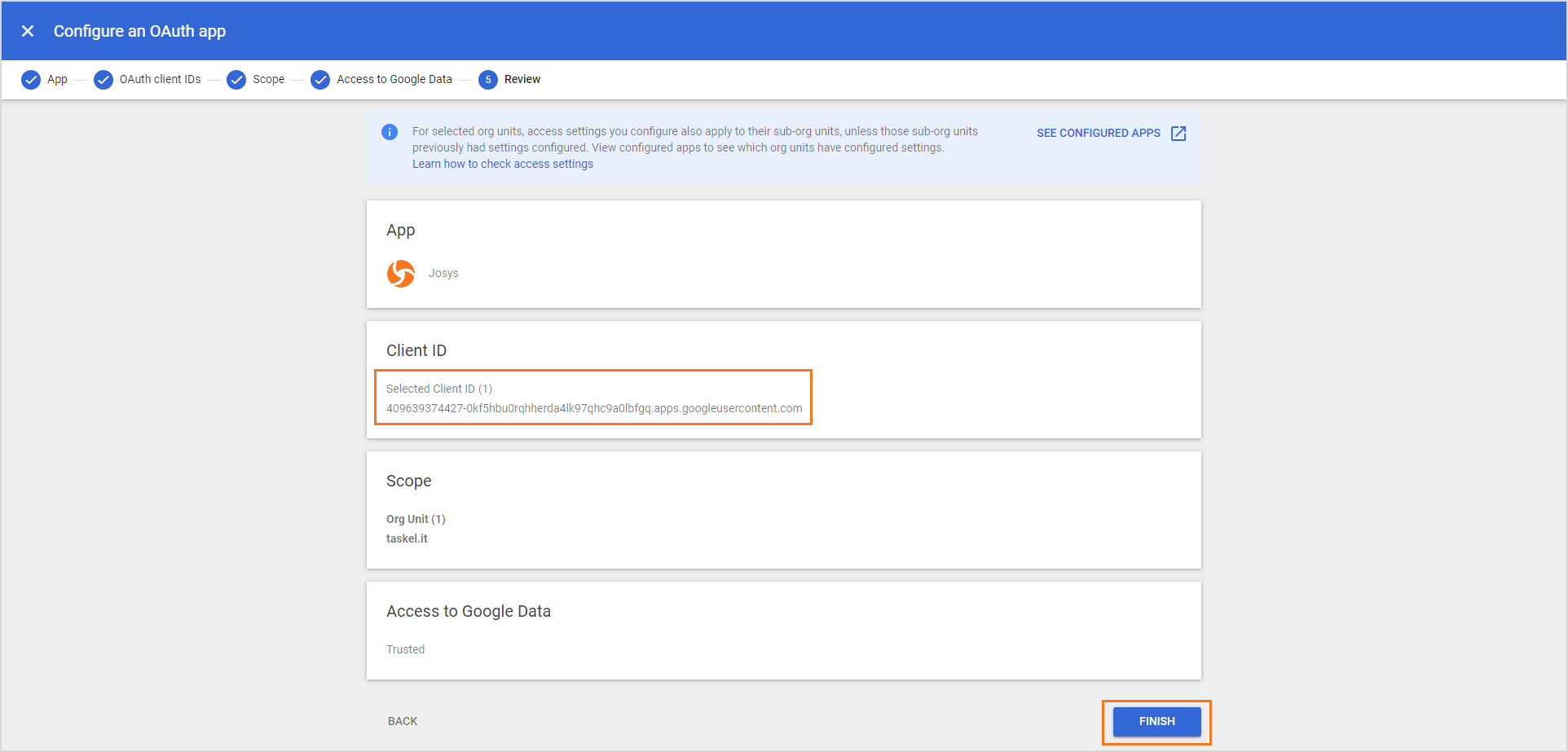
Step 9: Copy the Client ID for later use and click Finish.
Steps to Manage Domain-Wide Delegation
Step 1: Go to API controls under Access and data control.
Step 2: Click Manage Domain Wide Delegation.
Step 3: Click Add new.
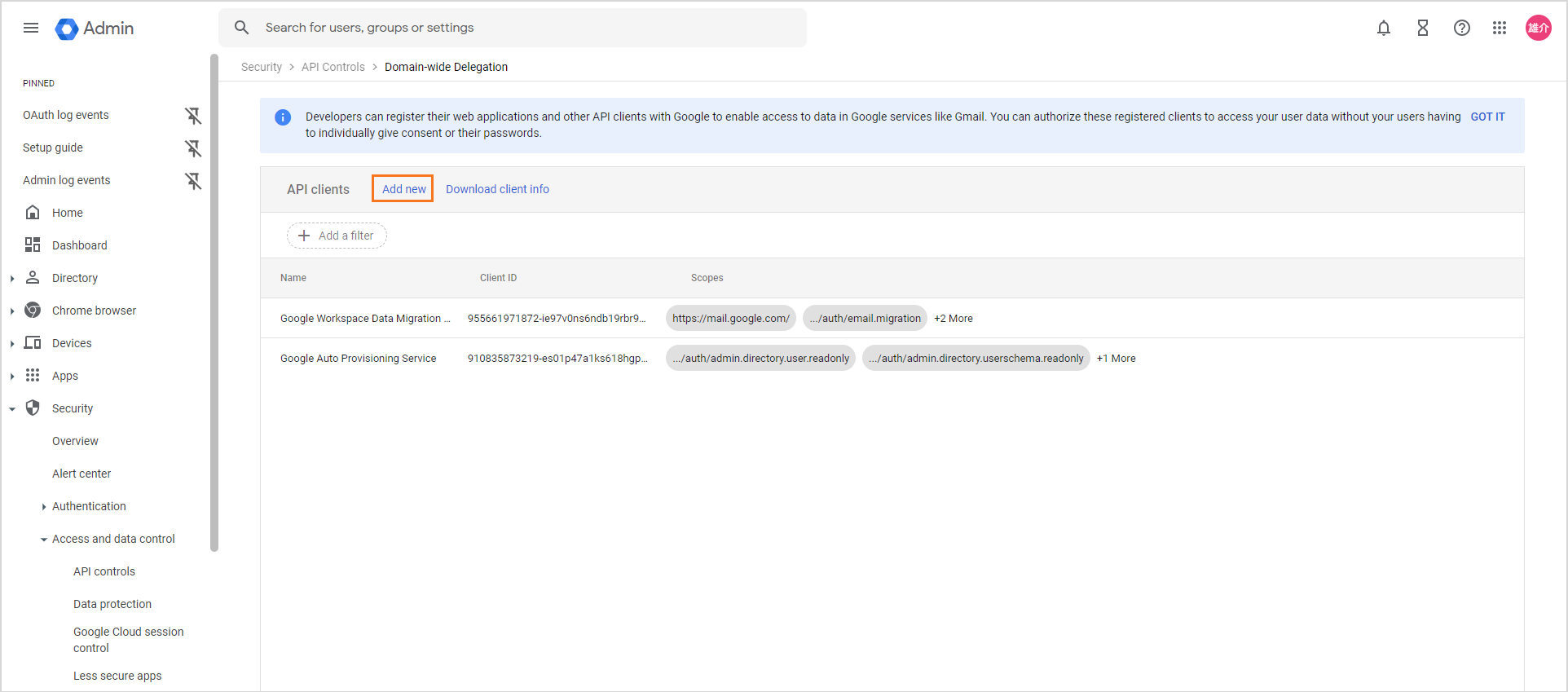
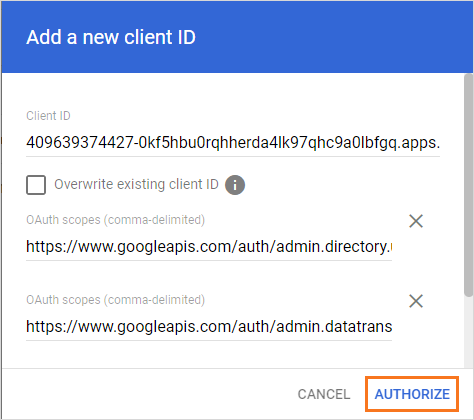
Step 4: Enter the Client ID copied in the previous section in the respective field. Enter the following OAuth scopes one at a time and click Authorize.
OAuth scopes
https://www.googleapis.com/auth/admin.directory.user
https://www.googleapis.com/auth/admin.datatransfer
https://www.googleapis.com/auth/admin.directory.rolemanagement
https://www.googleapis.com/auth/admin.directory.group
https://www.googleapis.com/auth/admin.directory.orgunit.readonly
https://www.googleapis.com/auth/admin.reports.audit.readonly
https://www.googleapis.com/auth/apps.licensing
https://www.googleapis.com/auth/admin.directory.customer.readonly
After adding the client ID, you can now integrate the Google Workspace app into Josys.