Organizations gain valuable insights into the SaaS applications and detect Shadow IT by leveraging Josys Browser Extension. The browser extension can be remotely activated through Microsoft Intune, providing centralized management of saas applications and configurations across different devices used by the employees in the organization. This ensures that all users' browsers have the browser extensions installed for monitoring without requiring manual intervention.
This article includes the process of activating the Josys browser extension on any browser (Google Chrome/Microsoft Edge) and validating the activation using Microsoft Intune.
The deployment includes the following two steps:
1. Enrolling your device in Microsoft Intune
2. Activating and validating the browser extension on your browser
Prerequisites
Before you begin with the activation, make sure that you have:
- A Microsoft Intune admin account
- A user group/users/devices in Microsoft Intune for enforcing the extension activation
- The end users enrolled their devices
1. Enrolling your device in Microsoft Intune
To enroll your device, download the Company Portal App and sign in using an admin account to enroll your device.

2. Install and Activate the browser extension on your browser
The activation includes the following steps:
i. Install the browser extension by creating a Configuration Profile
ii. Adding Organization key and User email to Activate extension
iii. Validating browser extension the browser extension
i. Install the browser extension by creating a Configuration Profile
Step 1: Log in to Microsoft Intune using an admin account. Navigate to Devices and select Configuration. Click Create and select New Policy.

Step 2: Choose Windows 10 and later as the Platform, Settings catalog for the Profile type, and click Create.

Step 3: Provide a name for the profile and click Next.

Step 4: Click Add settings under the Configuration settings tab.

Step 5: Enter Extension in the search bar and click Search to search for the Google Chrome/Microsoft Edge extension option.

Step 6: Select Google Chrome or Microsoft Edge browser, configure the necessary settings to push the extension, and click Close.
- To push the extension to the Google Chrome browser, select the Google Chrome Extensions option and select Configure the list of force-installed apps and extensions (User) under the settings.

- To push the extension to the Microsoft Edge browser, select the Microsoft Edge/Extensions option and select Control which extensions are installed silently (User) under the settings.

Step 7: Enable the Google Chrome/Microsoft Edge extension from the toggle button, enter the following extension ID and the URL in the respective fields, and click Next.
Chrome Extension ID:moaklgcgokbgplldonjkoochhlefkbjf;https://clients2.google.com/service/update2/crx

Edge Extension ID:hjifncajikcdkhlofdjjlhcjoennmdfc;https://edge.microsoft.com/extensionwebstorebase/v1/crx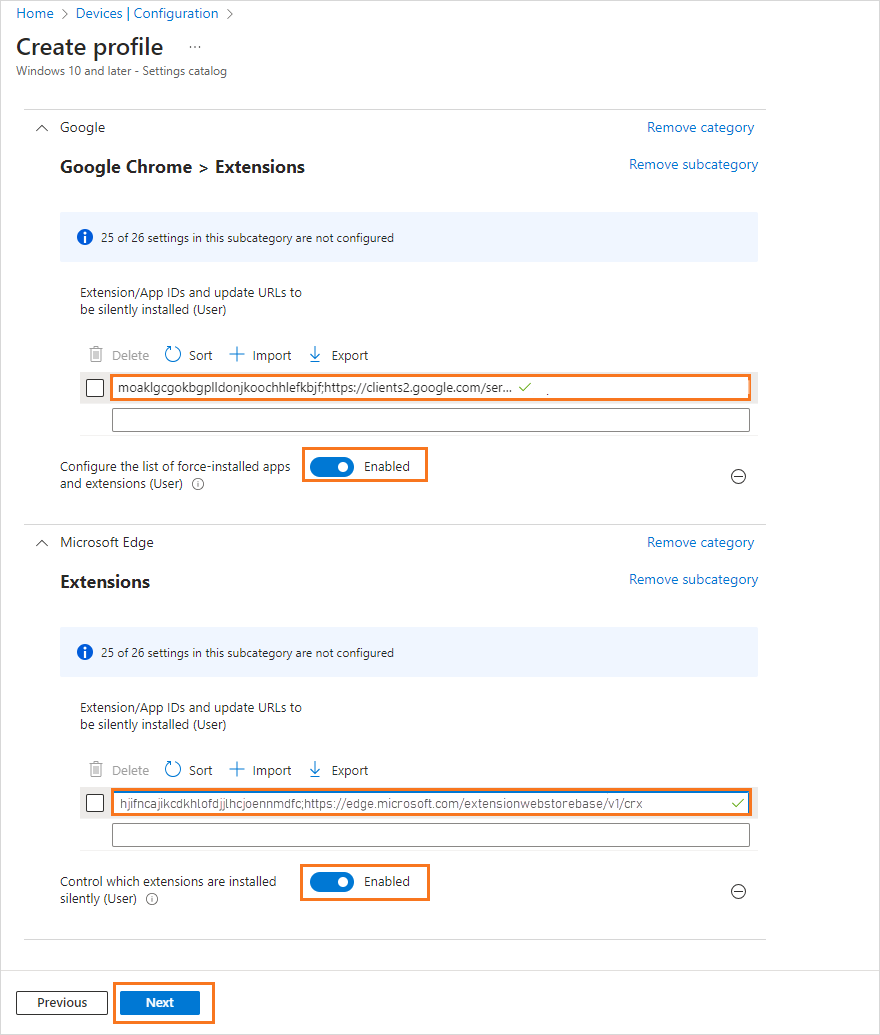
Step 8: Select Scope tags as required. The Default tag is selected by default.

Step 9: Select groups/users/devices in groups and click Next.

Step 10: Review the configuration settings and click Create.

ii. Adding Organization key and User email to Activate extension
To enable an extension to access data from the managed_store, it's necessary to store the request data within the system registry, either in HKEY_LOCAL_MACHINE (HKLM) or HKEY_CURRENT_USER (HKCU).
HKCU should be used when the settings are tailored to individual users, particularly beneficial in shared system environments.
Data added to the below-specified registry will be automatically read by the browser and be configured within the managed store
For Edge Browser: HKLM\\SOFTWARE\\Policies\\Microsoft\\Edge\\3rdparty\\extensions\\hjifncajikcdkhlofdjjlhcjoennmdfc\\policyFor Chrome Browser: HKLM\\SOFTWARE\\Policies\\Google\\Chrome\\3rdparty\\extensions\\moaklgcgokbgplldonjkoochhlefkbjf\\policyCreate a script in PowerShell to automate the data creation in the correct manage path and upload it for all the users through Microsoft Intune.
a. Creating the PowerShell script to write data to the system registry
Save the following PowerShell Script as "browser_extension_instllation.ps1" to use it later.
# Flag to determine if script should run with admin privileges
$runAsAdmin = $false  # Set to $true to run as Admin, or $false to run as a normal user

# Check for admin rights
function Test-AdminRights {
    return ([Security.Principal.WindowsPrincipal] [Security.Principal.WindowsIdentity]::GetCurrent()).IsInRole([Security.Principal.WindowsBuiltInRole]::Administrator)
}

# Relaunch the script as admin if required
if ($runAsAdmin -and -not (Test-AdminRights)) {
    Write-Host "Restarting script with elevated privileges..."
    Start-Process "powershell" -ArgumentList "-ExecutionPolicy Bypass -File `"$PSCommandPath`"" -Verb RunAs
    exit
}

# Define variables
$Logfile          = "$([Environment]::GetFolderPath('Desktop'))\$(Get-Content env:computername)-Josys-Ext-setup.log"
$organization_key = "PASS_ORGANIZATION_KEY"   # Get from your account
$company_domain   = "@pass_domainame.com" # e.g., @josys.com
$username         = $null
# -- Instead of a single browser string, we now accept a list:
$browserList      = @("chrome", "edge")  # e.g. @("chrome"), @("edge") or @("chrome","edge")
$saveEmailToRegistry = $true
$onLocalMachine   = $true

# Extension information
$chrome_extension_id = "moaklgcgokbgplldonjkoochhlefkbjf"
$chrome_update_url   = "https://clients2.google.com/service/update2/crx"
$edge_extension_id   = "hjifncajikcdkhlofdjjlhcjoennmdfc"
$edge_update_url     = "https://edge.microsoft.com/extensionwebstorebase/v1/crx"

$regBaselocation = if ($onLocalMachine) { "HKLM:" } else { "HKCU:" }

# Registry paths for policies and force-install
$registry_path_chrome        = "$regBaselocation\SOFTWARE\Policies\Google\Chrome\3rdparty\extensions\$chrome_extension_id\policy"
$registry_path_edge          = "$regBaselocation\SOFTWARE\Policies\Microsoft\Edge\3rdparty\extensions\$edge_extension_id\policy"
$registry_path_chrome_install= "$regBaselocation\SOFTWARE\Policies\Google\Chrome\ExtensionInstallForcelist"
$registry_path_edge_install  = "$regBaselocation\SOFTWARE\Policies\Microsoft\Edge\ExtensionInstallForcelist"

# Function to get user email using "whoami /upn"
function Get-UserEmailFromWhoAmIUPN {
    Write-Host "Try 1: Get user email via User Principal Name (UPN)"
    $upn = whoami /upn 2>&1

    if ($LASTEXITCODE -eq 0 -And $upn -match "^.+@.+$") {
        return $upn
    }
    else {
        Write-Host "Failed to get User Principal Name (UPN): $upn"
        return $null
    }
}

# Function to get user email by attaching "@example.com" to the username
function Get-EmailFromUsername {
    Write-Host "Try 2: Constructing email using username"
    while ($null -eq $username) {
        $username = (Get-CimInstance Win32_Process -Filter 'name = "explorer.exe"' | Invoke-CimMethod -MethodName getowner).User
        if ($username -is [array]) {
            $username = $username[0]
        }
        $username = $username -replace ' ', '.'
        # In case the username comes as JohnDoe then split it to John.Doe
        if ($username -notmatch "\.") {
            $username = $username -creplace '(?<!^)([A-Z])', '.$1'
        }

        Write-Host "Username from manual flow: $username"
        Start-Sleep -Seconds 1
    }
    return "$username$company_domain"
}

# Function to set force-install registry entry
function Set-ForceInstallExtension {
    param(
        [Parameter(Mandatory=$true)]
        [string]$Browser
    )

    if ($Browser -eq "chrome") {
        $registryInstallCU = "HKCU:\SOFTWARE\Policies\Google\Chrome\ExtensionInstallForcelist"
        $registryInstallLM = "HKLM:\SOFTWARE\Policies\Google\Chrome\ExtensionInstallForcelist"
        $extension_id      = $chrome_extension_id
        $update_url        = $chrome_update_url
    }
    elseif ($Browser -eq "edge") {
        $registryInstallCU = "HKCU:\SOFTWARE\Policies\Microsoft\Edge\ExtensionInstallForcelist"
        $registryInstallLM = "HKLM:\SOFTWARE\Policies\Microsoft\Edge\ExtensionInstallForcelist"
        $extension_id      = $edge_extension_id
        $update_url        = $edge_update_url
    }
    else {
        throw "Invalid browser specified. Use 'chrome' or 'edge'."
    }

    $targetHive = if ($onLocalMachine) { $registryInstallLM } else { $registryInstallCU }

    $allPaths = @($registryInstallCU, $registryInstallLM)
    $allProps = @()
    foreach ($path in $allPaths) {
        if (Test-Path $path) {
            $props = (Get-Item -Path $path -ErrorAction SilentlyContinue).Property
            if ($props) {
                foreach ($p in $props) {
                    if ($p -match '^\d+$') {
                        $val = (Get-ItemProperty -Path $path -Name $p).$p
                        $allProps += [PSCustomObject]@{
                            HivePath  = $path
                            PropName  = [int]$p
                            PropValue = $val
                        }
                    }
                }
            }
        }
    }

    $extensionString = "$extension_id;$update_url"
    $alreadyInstalled = $allProps | Where-Object { $_.PropValue -eq $extensionString }
    if ($alreadyInstalled) {
        Write-Host "Extension '$extensionString' is already in the force-install list under:"
        $alreadyInstalled | ForEach-Object {
            Write-Host "  - HivePath: $($_.HivePath), Index: $($_.PropName)"
        }
        Write-Host "Skipping installation..."
        return
    }

    if ($allProps) {
        $maxIndex = ($allProps | Measure-Object -Property PropName -Maximum).Maximum
    }
    else {
        $maxIndex = 0
    }
    $newIndex = $maxIndex + 1

    if (-not (Test-Path $targetHive)) {
        New-Item -Path $targetHive -Force -ItemType Directory | Out-Null
    }

    Set-ItemProperty -Path $targetHive -Name $newIndex -Value $extensionString -Type String

    Write-Host "Extension with ID '$extension_id' added to $targetHive at index '$newIndex'."
}

# Main script execution
try {
    # Start-Transcript -Path $Logfile
    Write-Host "**** Josys-Extension-Setup Start ****"

    # Before we loop, grab the email if we intend to store it (so that it's consistent for all browsers).
    # You could also do this separately for each browser if desired.
    $user_email = $null
    if ($saveEmailToRegistry) {
        $user_email = Get-UserEmailFromWhoAmIUPN
        if ($null -eq $user_email) {
            $user_email = Get-EmailFromUsername
        }
        if ($null -eq $user_email) {
            throw "Email not found"
        }
        Write-Output "Email to add to registry => $user_email"
    } else {
        Write-Output "Skipping email retrieval and registry entry for UserEmail as per flag setting."
    }

    # Loop through each browser in $browserList
    foreach ($browser in $browserList) {
        Write-Host "`n===== Processing browser: $browser ====="

        # Pick the registry paths based on the current browser
        if ($browser -eq "chrome") {
            $extension_id         = $chrome_extension_id
            $update_url           = $chrome_update_url
            $registry_path_policy = $registry_path_chrome
            $registry_path_install= $registry_path_chrome_install
        }
        elseif ($browser -eq "edge") {
            $extension_id         = $edge_extension_id
            $update_url           = $edge_update_url
            $registry_path_policy = $registry_path_edge
            $registry_path_install= $registry_path_edge_install
        }
        else {
            throw "Invalid browser option specified. Please choose either 'chrome' or 'edge'."
        }

        # Ensure registry path for policy exists
        $parent_path_policy = Split-Path -Path $registry_path_policy
        if (!(Test-Path $parent_path_policy)) {
            New-Item -Path $parent_path_policy -Force -ItemType Directory | Out-Null
        }
        if (!(Test-Path $registry_path_policy)) {
            New-Item -Path $registry_path_policy -Force -ItemType Directory | Out-Null
        }

        # Set user email in the policy path if flag is set
        if ($saveEmailToRegistry -and $null -ne $user_email) {
            Set-ItemProperty -Path $registry_path_policy -Name "UserEmail" -Value $user_email
        }

        # Add organization key to registry
        Write-Output "Adding OrganizationKey to registry => $organization_key (for $browser)"
        Set-ItemProperty -Path $registry_path_policy -Name "OrganizationKey" -Value $organization_key

        # Apply force install for this browser
        # (Uncomment next line if you want to run force-install)
        Set-ForceInstallExtension -Browser $browser
    }

} catch {
    Write-Host "**** Josys-Extension-Setup Error ****"
    Write-Error "Script failed with: $_"
    exit 1
} finally {
    Write-Host "**** Josys-Extension-Setup End ****"
    # Stop-Transcript
}

exit 0
Refer to section 1 of the Remote activation of Josys Browser Extension to locate your organization key.
b. Pushing the PowerShell script to the end user systems through Microsoft Intune
Step 1: Log in to Microsoft Intune using an admin account. Navigate to Devices and select Scripts and remediations. Click Add and select Windows 10 and later.

Step 2: Provide a name for the script and click Next.

Step 3: Upload the script: "browser_extension_instllation.ps1" and choose No for all toggle options. Click Next.
 Step 4: Select groups/users/devices under groups and click Next.

Step 5: Review the script settings and click Add. The script takes some time to execute.

iii. Validating browser extension activation
After activating the browser extension, the IT Admin can validate the activation to ensure the extension is activated successfully.
Step 1: Open the Registry Editor on your targeted device.
Step 2: Navigate to the following registry key location based on your browser. The data for Google Chrome/Microsoft Edge is stored in the following location:
Microsoft Edge Browser location:
HKLM\SOFTWARE\Policies\Microsoft\Edge\3rdparty\extensions\hjifncajikcdkhlofdjjlhcjoennmdfc\policy

Google Chrome Browser location
HKLM\SOFTWARE\Policies\Google\Chrome\3rdparty\extensions\moaklgcgokbgplldonjkoochhlefkbjf\policy
Step 3. Check the key with the following value:
Chrome Extension ID:moaklgcgokbgplldonjkoochhlefkbjf

Edge Extension ID:hjifncajikcdkhlofdjjlhcjoennmdfc