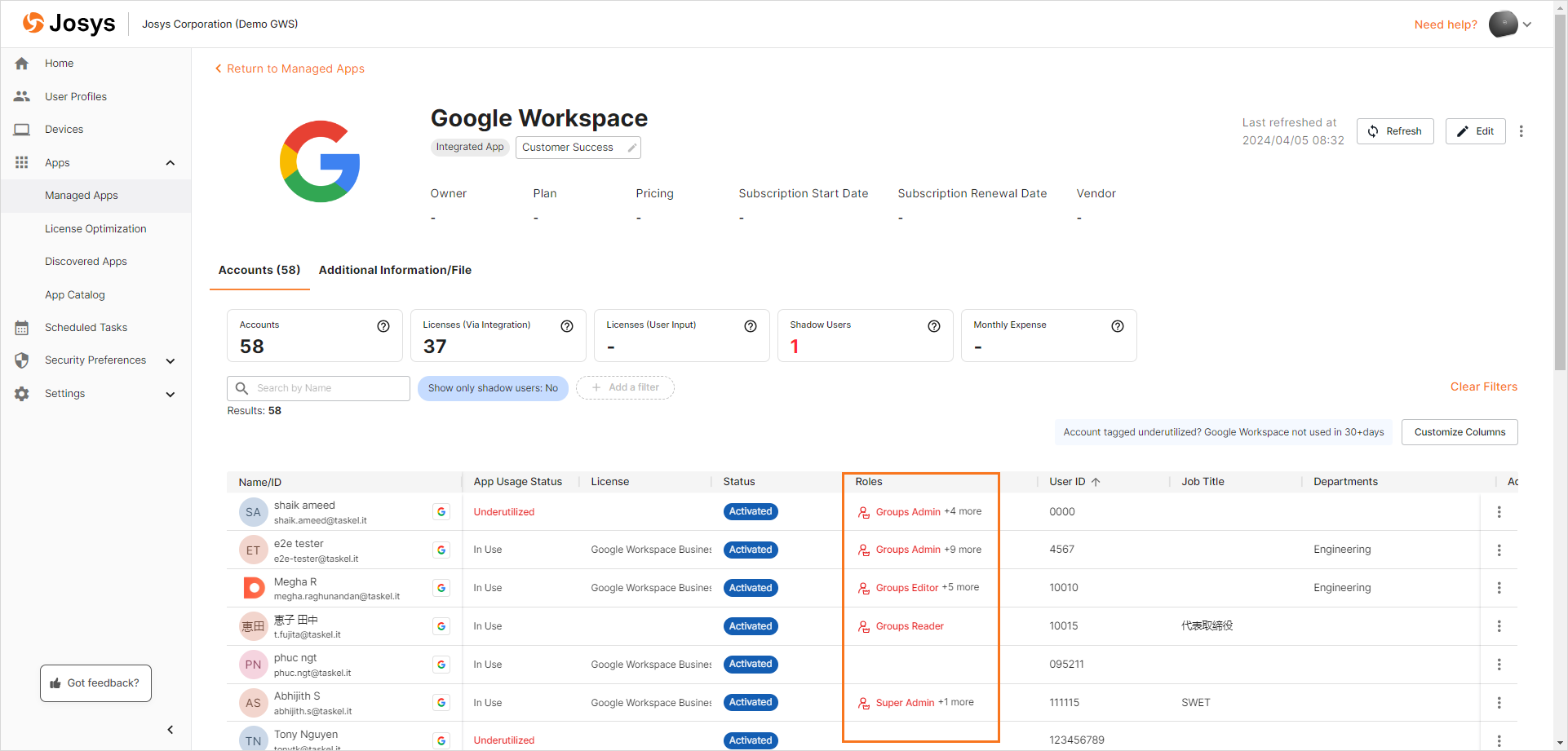
After the IT Admin integrates any supported app, the user's role details for that app are automatically retrieved and populated in Josys through the License API, as shown in the image below.
Currently, the IT Admin can view the privileged access of the users for the following five applications:
1. Google Workspace
2. Zoom
3. Microsoft
4. Github
5. Salesforce
Accessing Users' Privilege Roles
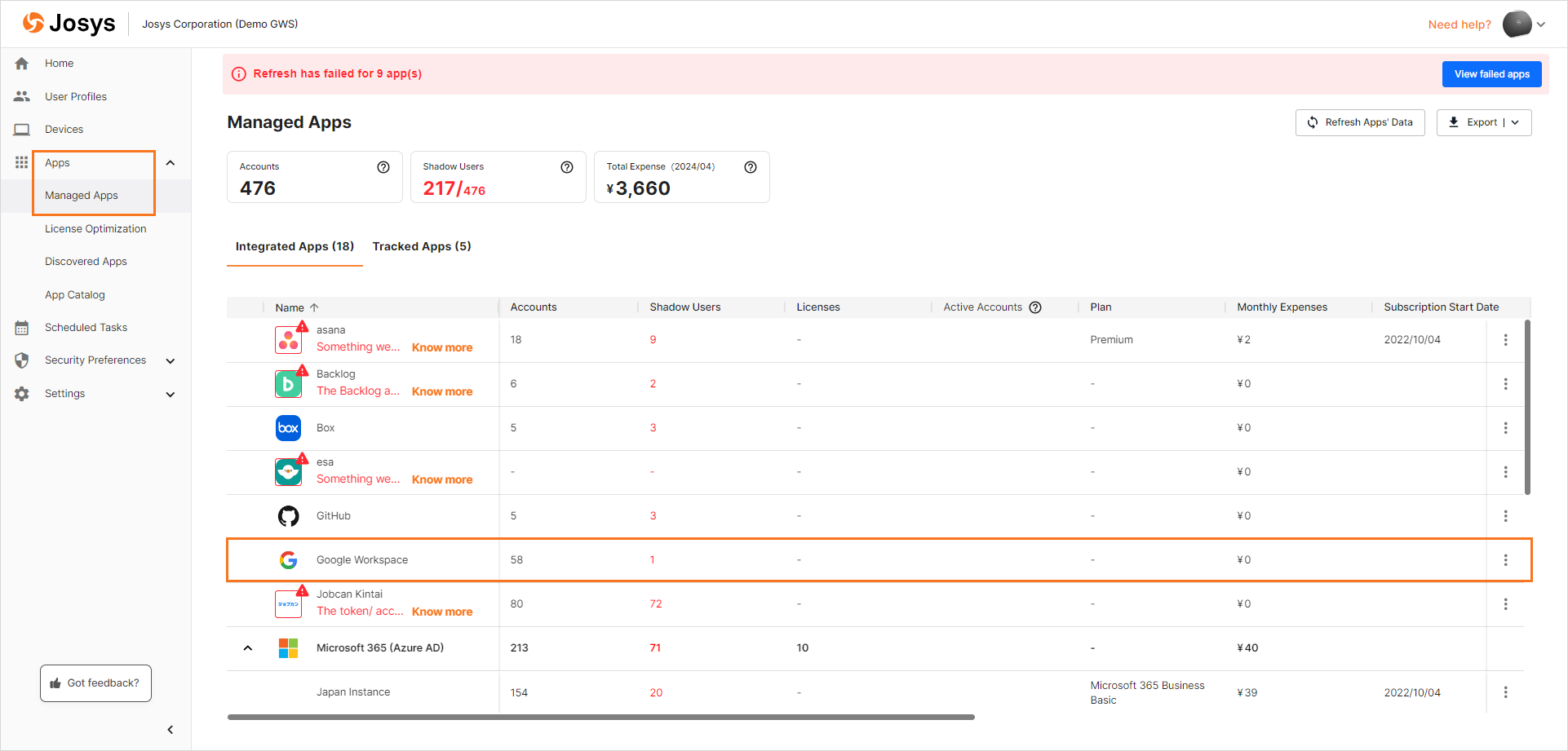
Step 1: Select Managed Apps in Apps.
Step 2: Open any supported app. For instance, to view the privileged access details associated with the users of the Google Workspace app, click on the app.
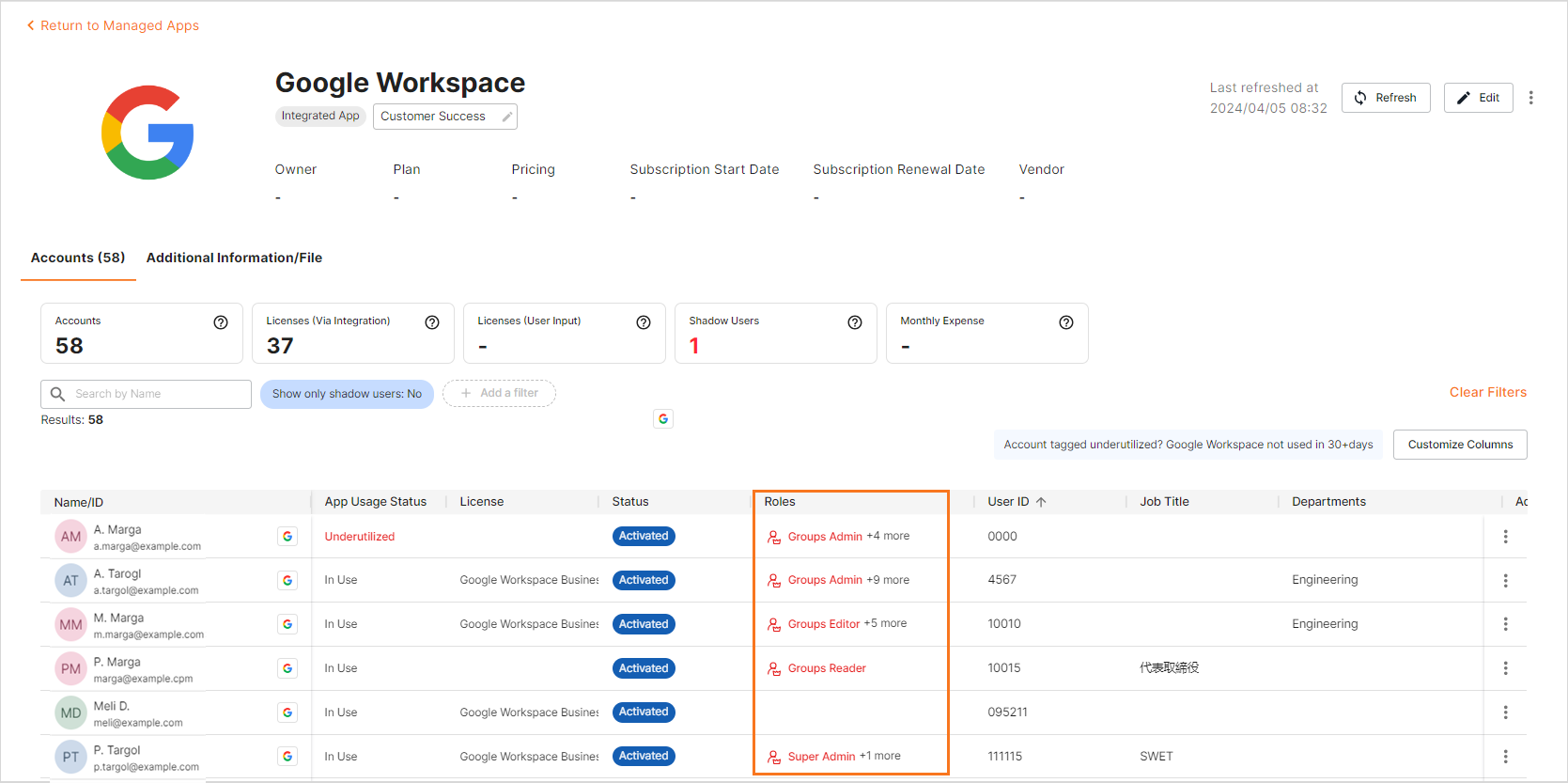
This action will generate a filtered list showing the roles assigned to the Google Workspace app users.
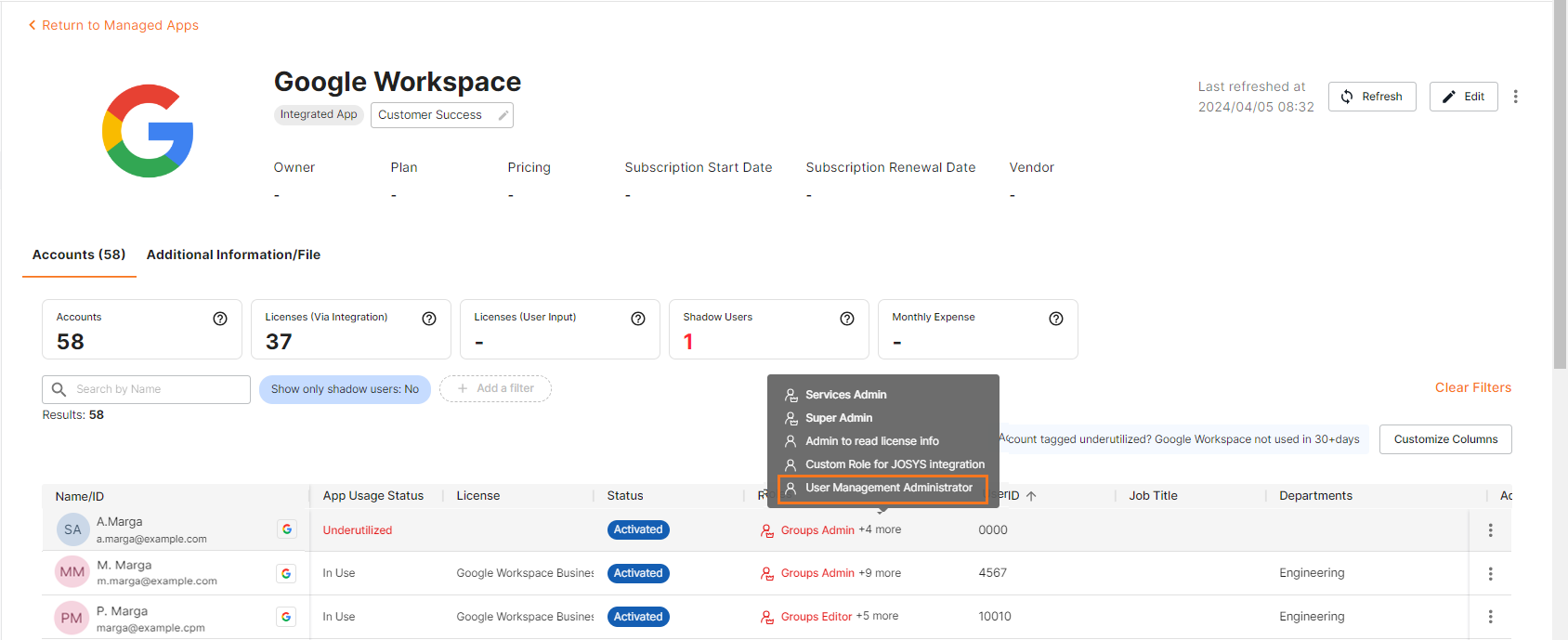
Step 3: When you hover your mouse over any role, all roles assigned to the user are displayed. The role highlighted in red indicates the "High Privileged" role.
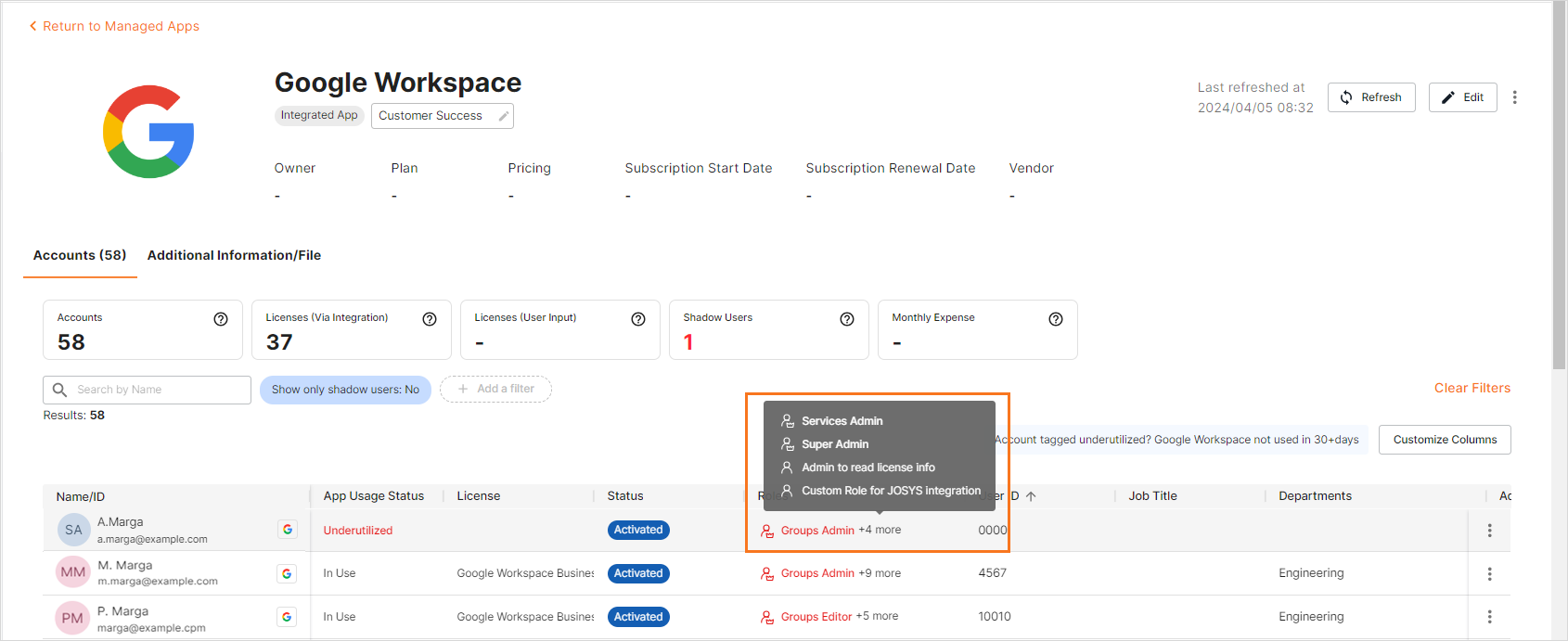
After you have assessed the user roles, you can modify the role for that particular user.
Modifying a Role
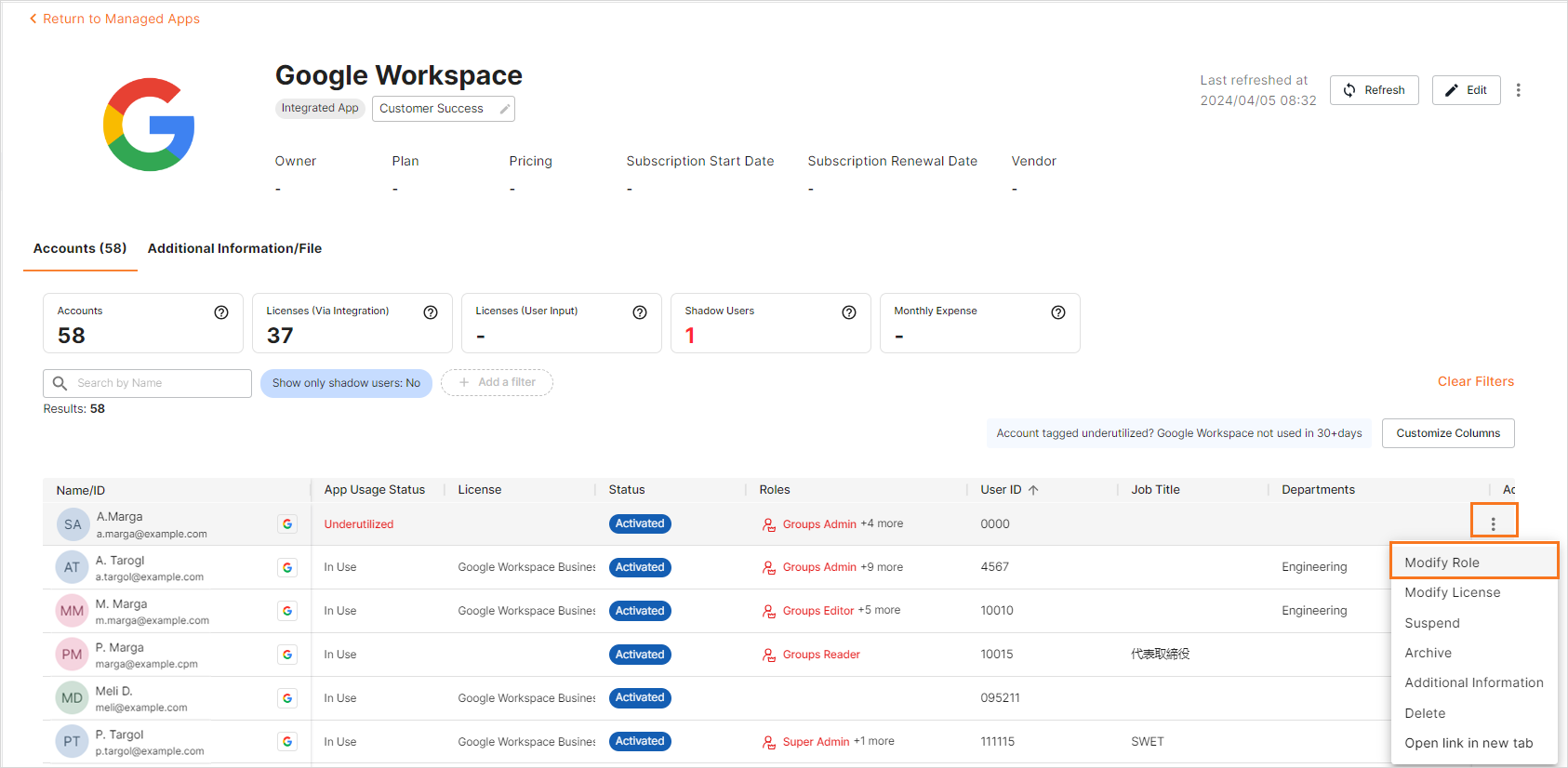
Step 1: To modify a user role, select Modify Role from the  icon.
icon.
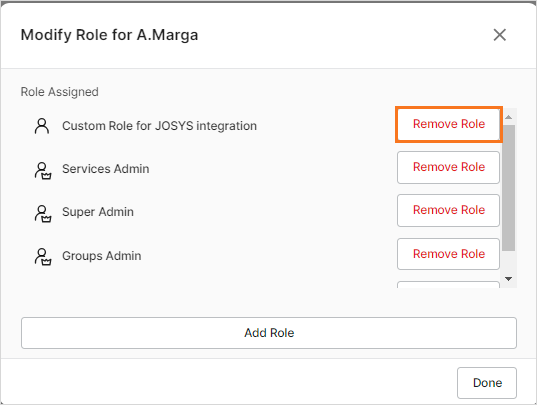
Step 2: To remove a role, click Remove Role.
Step 3: To add a role, click Add Role.
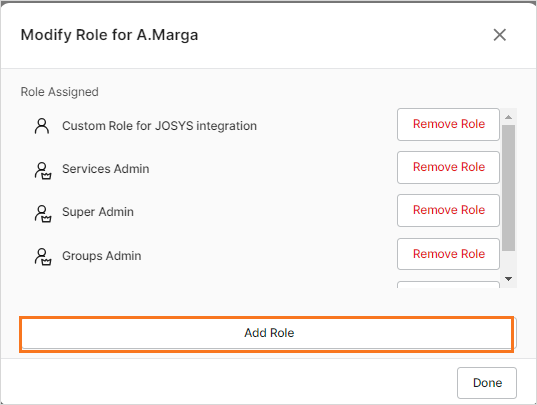
Step 4: Select a Role from the given options, click ✓, and then click Done.
Tip: The high privilege roles are displayed with a Privileged Access label.
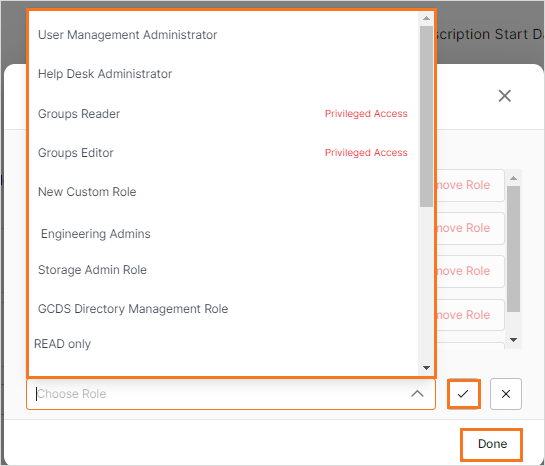
Step 5: You can view the recently assigned role from the respective user's role.